> For the complete documentation index, see [llms.txt](https://computationaldocs.zeblok.com/info/llms.txt). Markdown versions of documentation pages are available by appending `.md` to page URLs; this page is available as [Markdown](https://computationaldocs.zeblok.com/info/1.3.3/procedure/inviting-user.md).
# Inviting User
User can be onboarded onto the AI Microcloud by the Admin using the Invite User feature as shown below
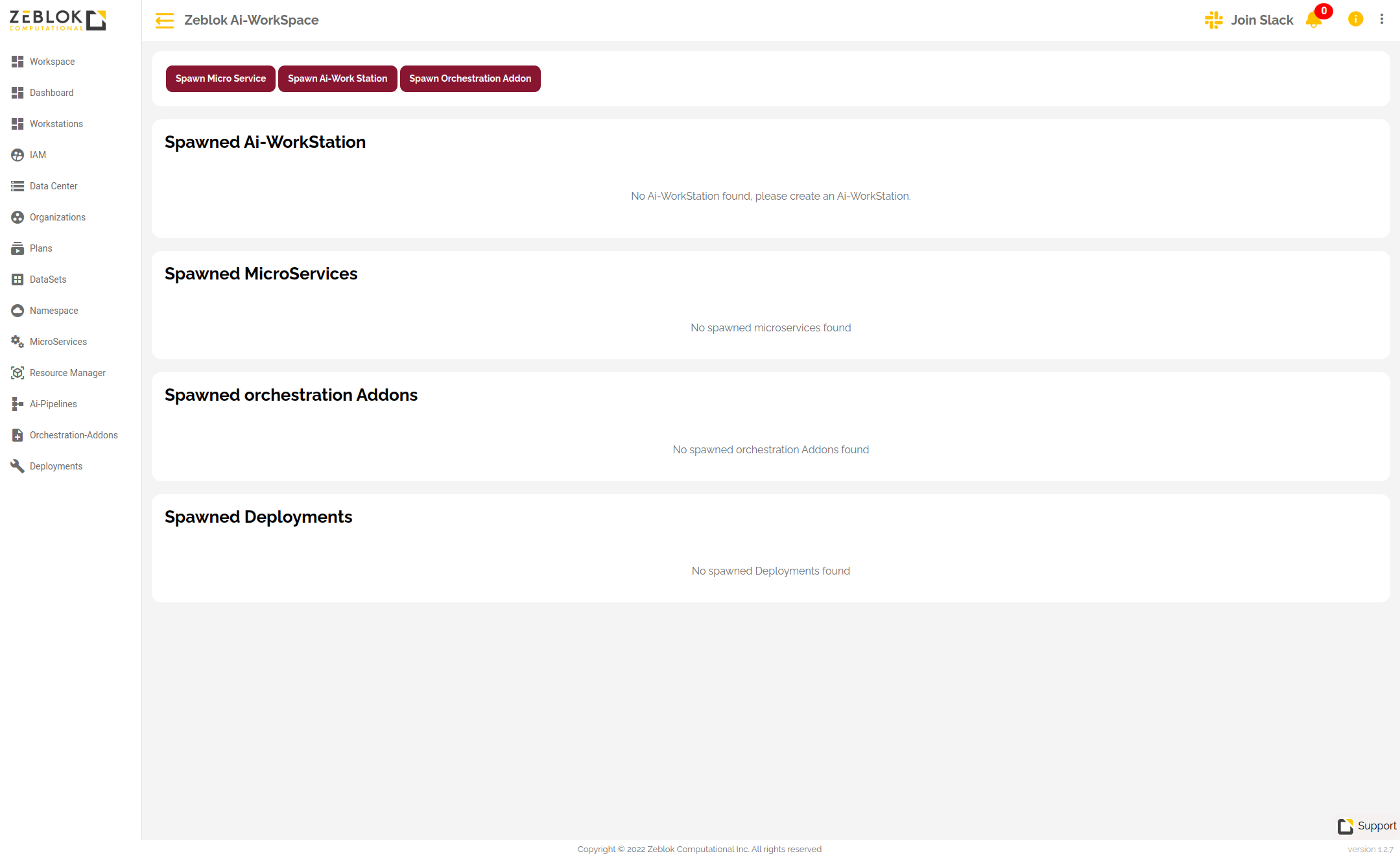
The Admin needs to login into the AI Microcloud and click on the Dashboard menu Item
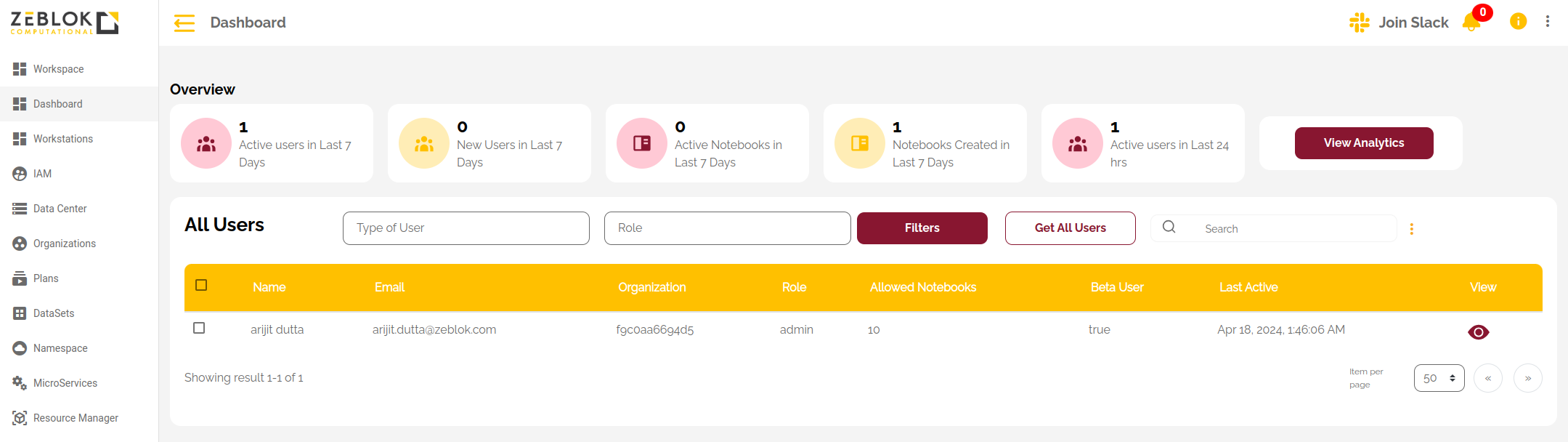
Click on Dashboard on the Left menu tray
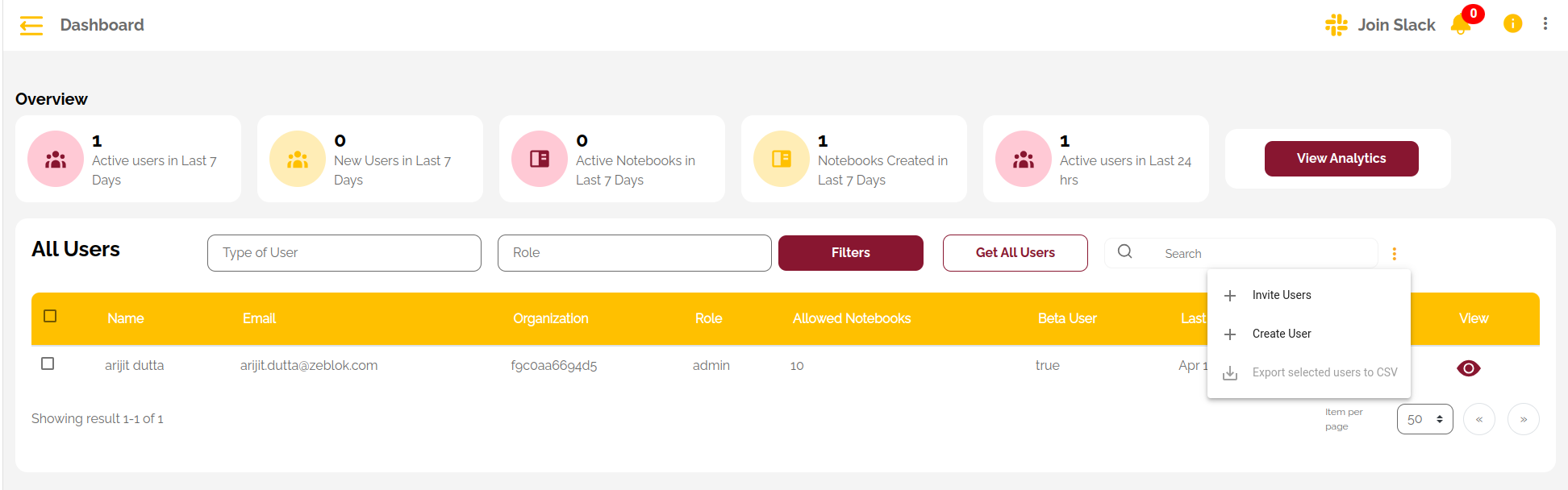
From there Admin needs to click the 3 dots beside the search bar as shown in the picture below
The Admin will be prmepted with an option to Invite or Create an User into their organization
Select the Invite User option
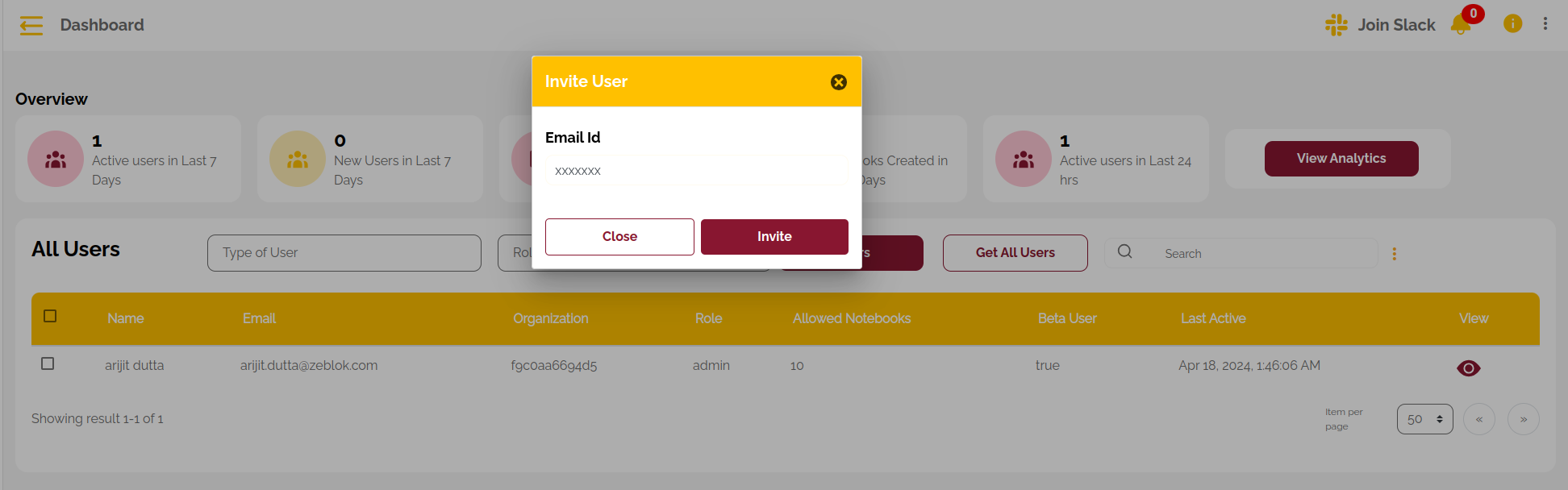
After slecting it will ask the admin to provide the e-mail address of the user he/she wants to onboard
Provide a valid email
After clicking the Invite button, The invited user will recive a mail from Zeblok and can confirm their login by creating username and password through the link provided and can login into the AI Microcloud
{% hint style="info" %}
1. New users will be having "Default" acsess which the Admin needs to change by adding the users to user groups.
2. New Users have to be assinged a Namespace
{% endhint %}