> For the complete documentation index, see [llms.txt](https://computationaldocs.zeblok.com/info/llms.txt). Markdown versions of documentation pages are available by appending `.md` to page URLs; this page is available as [Markdown](https://computationaldocs.zeblok.com/info/1.2.9/spawn-workstation.md).
# Spawn Ai-WorkStation
Step By Step Guide for Spawning an Ai-WorkStation
### Overview
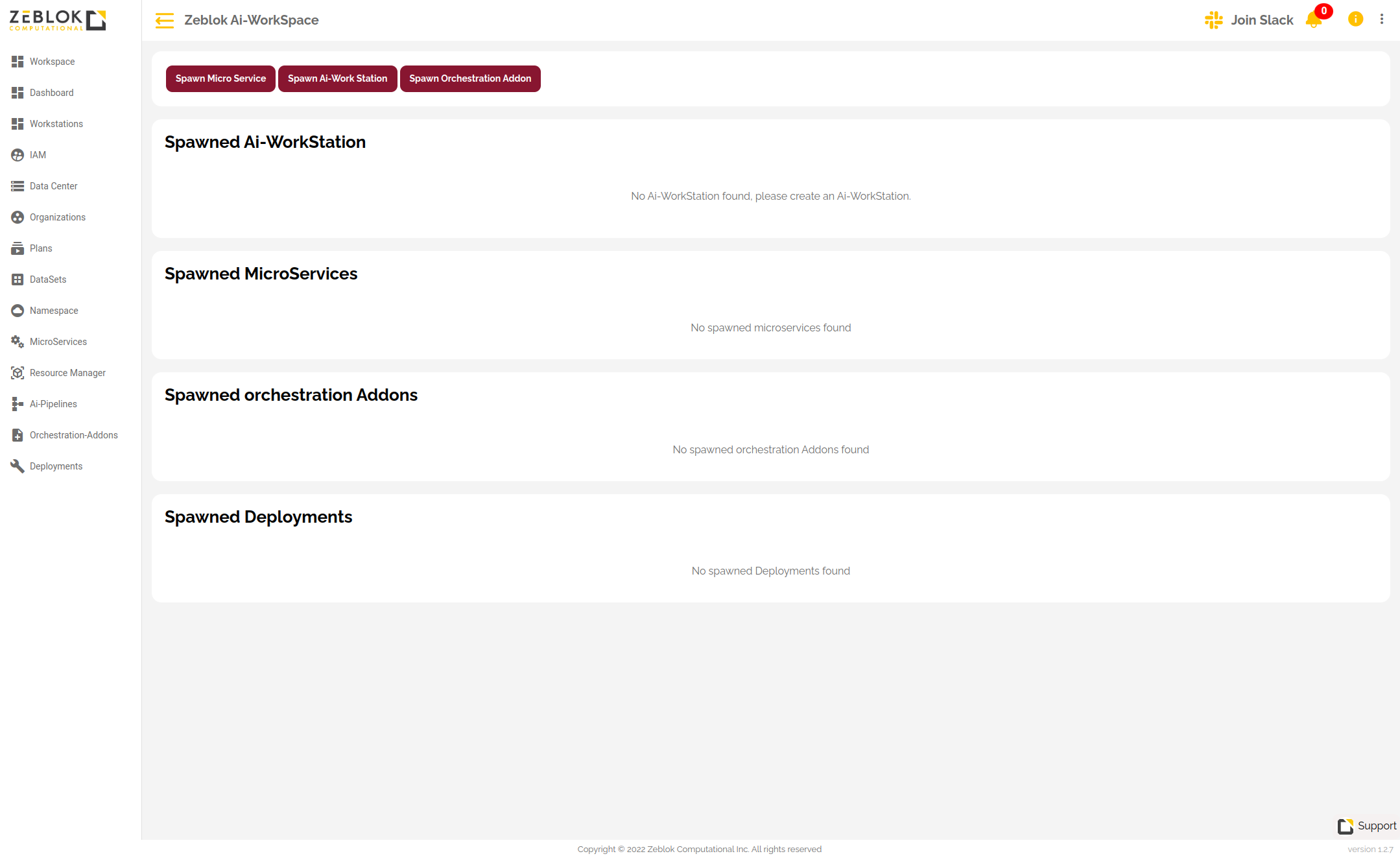
Once you logged into the Zeblok Computational Application, you will get an option for **Spawn Ai-Workstation** as shown in the screenshot below.
Figure 1: Dashboard
#### **Step 1**
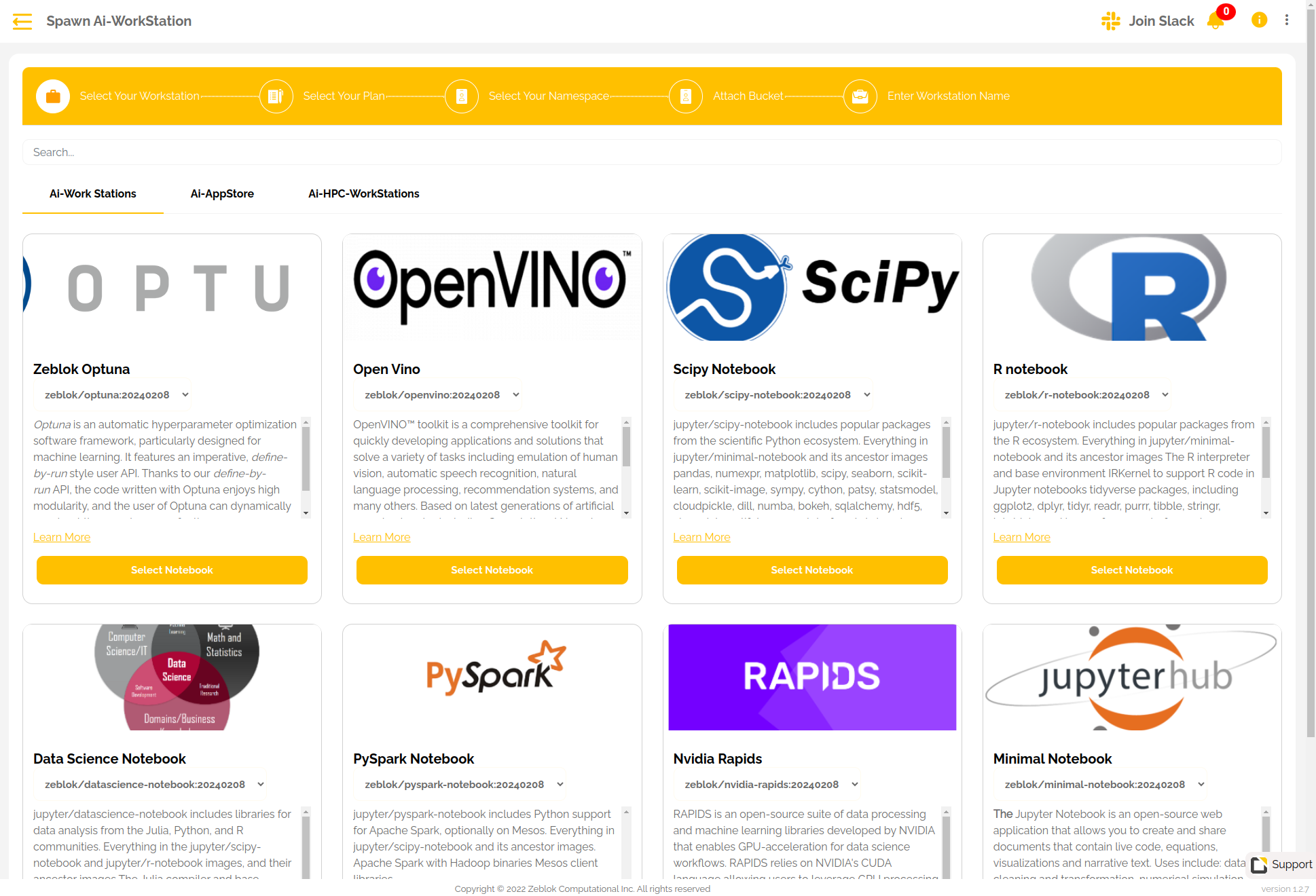
Click on "Spawn Ai-Workstation", you will be redirected to a page as shown below.
Figure 2: Spawn Ai-WorkStation
#### **Step 2**
Select the Notebook which you want to use, whether it can be an Ai-WorkStations, Intelligence Marketplace, or Ai-HPC-WorkStations as shown below.
Figure 3 Types of Notebooks
#### **Step 3**
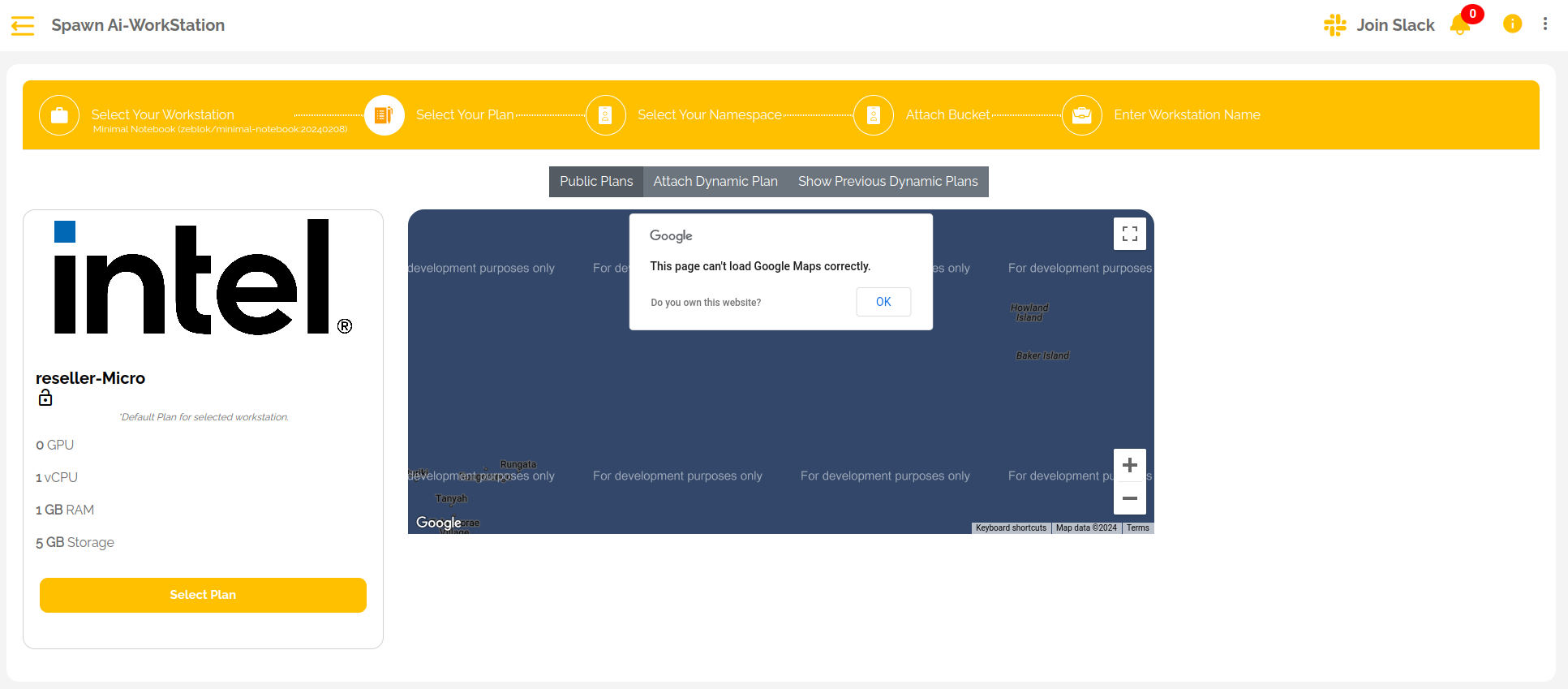
Depending on whether you are a beta user or not, all the plans will be unlocked for you and ready to use if you are a Beta User. Currently, everyone is given **BETA Access**.
#### **Step 4 (Beta User)**
Select the Plan which fulfills your requirements in terms of resources provided by clicking on the **Select Plan** button.
Figure 4: Select Plan for Beta User
#### Step 5
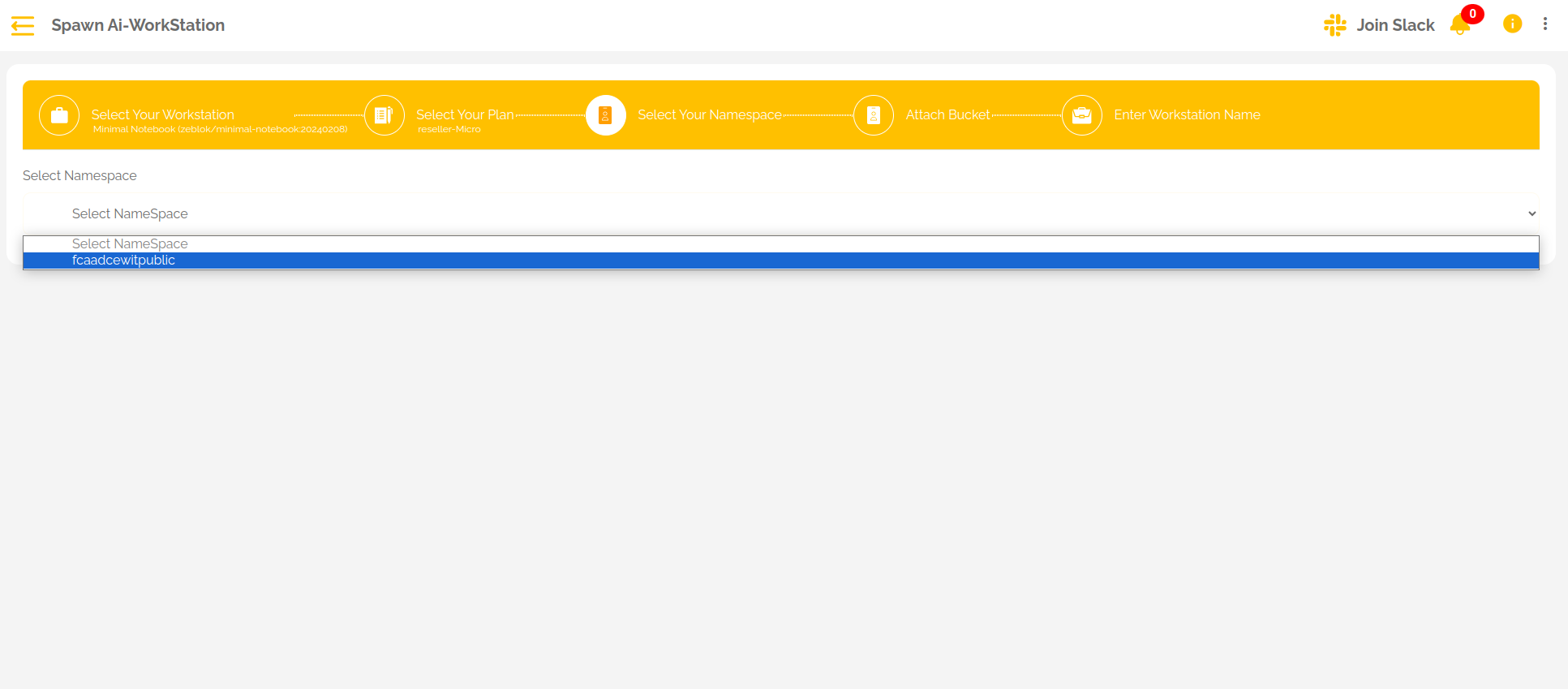
Select the namespace in which you would like to deploy your Ai-WorkStation.
{% hint style="info" %}
**Note:** You have to be a member of a namespace to get the option to select a namespace.
Contact your OrgAdmin to add you in a namespace or, if you are an OrgAdmin, you can go to the namespace section and add the desired person as a member to a namespace.
{% endhint %}
Figure 5: Select a Namespace
#### Step 6
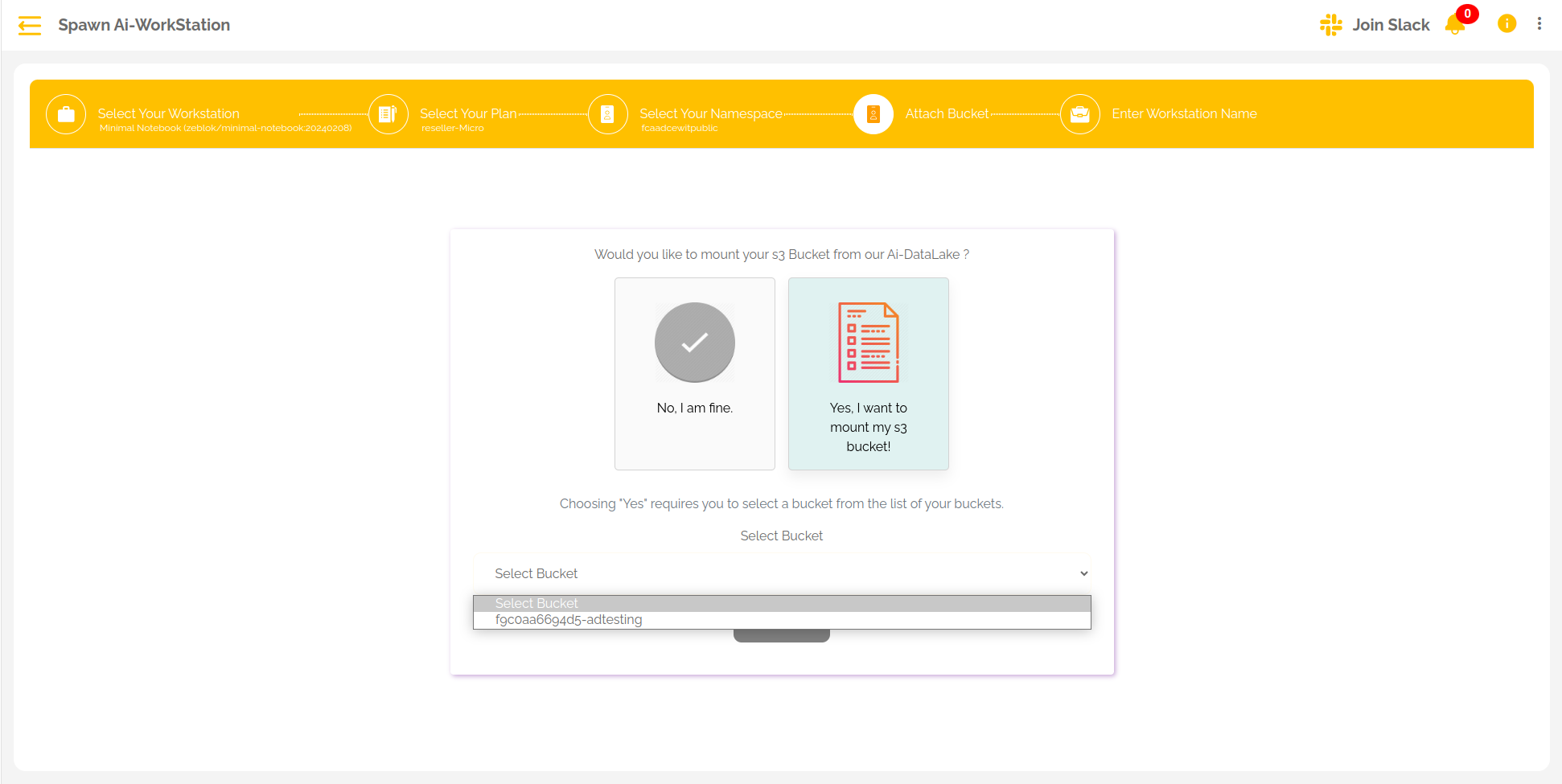
Choose whether you want to mount your S3 bucket from our Ai-DataLake or not.
If yes, then select your bucketname from the dropdown.
Fig. 6: Mount your S3 Bucket
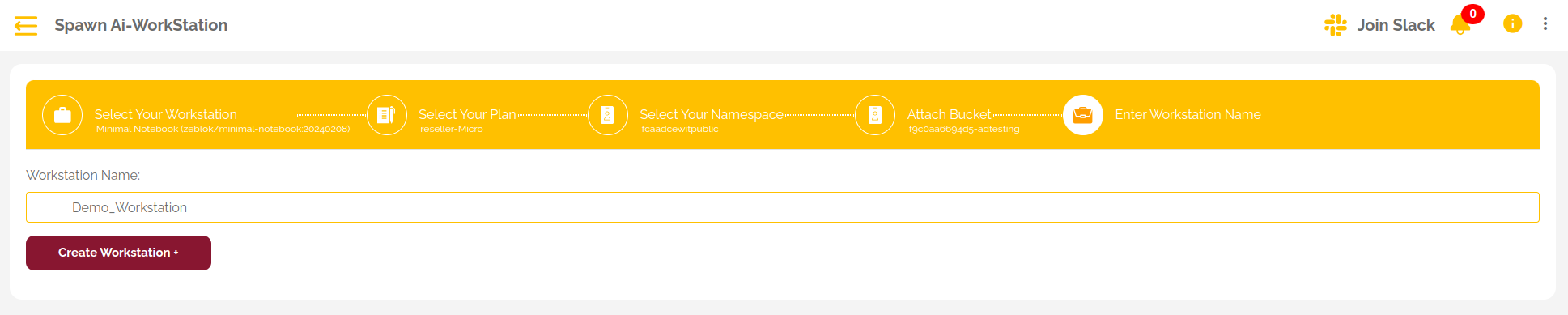
#### **Step 7**
Enter the Notebook Name and finally spawn it as shown below. After successful creation, you will get your Notebook.